We ran into an interesting problem with PuTTY. PuTTY doesn’t have a print-screen function. We looked around for an application that would simply print the clipboard. True, you could do something like ctrl-v, ctrl-p in notepad, but then you have to change focus, which is distruptive. With PuTTY, you simply highlight text with the left mouse button, and the text will go to the clipboard, much like X or GPM. We decided that another app was needed in this world: a free app that lived in the system tray that you could click and it printed the text on the clipboard. When integrated with PuTTY, it means that all you have to do is highlight and click to grab the screen or bits of the screen. You can also use the “Copy All to Clipboard” option in the PuTTY menu to grab and print the whole buffer.
Usually when we are snagging text screen-shots, we want the columns to line up as well. Our app uses the Lucida Console font, so it will render the text in columns correctly both when viewing, and when printing.
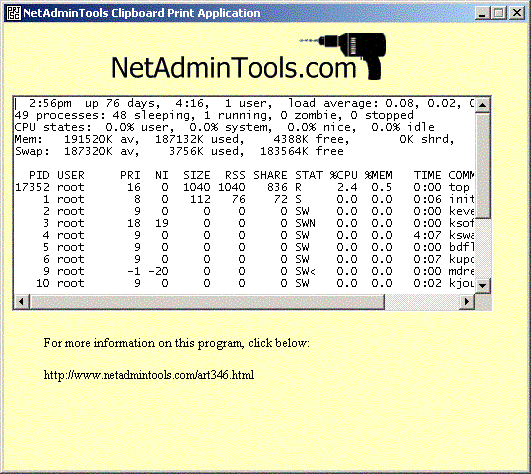
As an example, if we highlight the text of a top session in PuTTY, and click the print-screen app icon in the system tray, this shows up in the apps text window:
If we print using the app, the output looks like this:
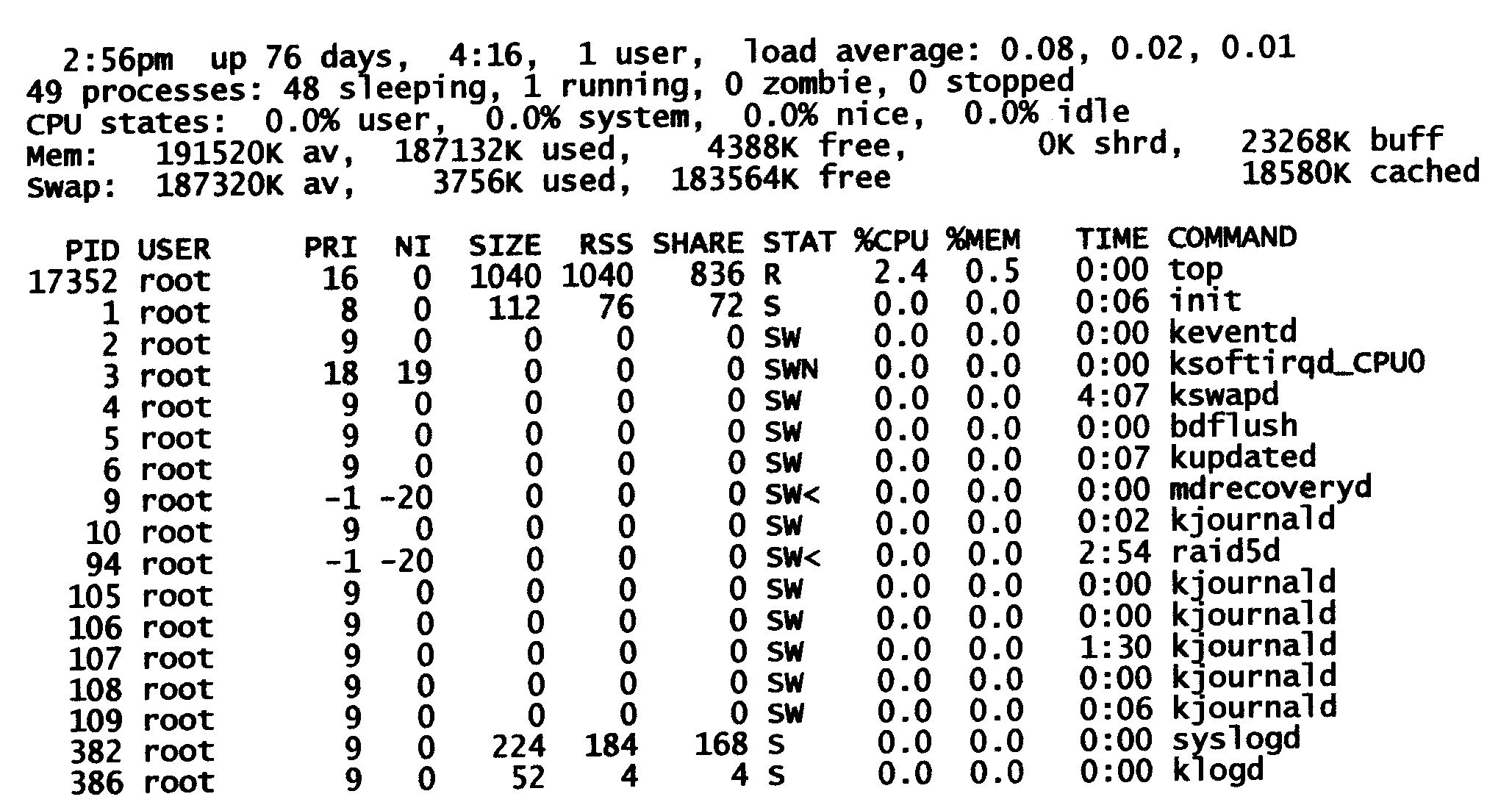
If you minimize the app, it will just live in the system tray. You just click the print-screen icon, select your printer, or accept the default, and print. You don’t even have to preview the text. If you restore the app by right clicking on the icon, you can view the text if you cancel the print dialog. Simply click the print-screen icon again to print. Whatever makes you happier.
Here is the app, bold and free:
Clip.exe 1.0 (1.44 Meg Self-extracting Executable)
We have tested this on NT, Windows 2000, XP, Vista, 7 and Windows 10. The program even still installs and runs fine on Windows XP, which is LONG gone, but you’d be surprised how many requests we get from folks still using it; however, the Lucida Console font is not included. If you add the font, it works fine. If you don’t add the font, it uses the default, which is not monospace. Just extract to a temp folder by running clip.exe. To install, run setup. Feel free to share this with your friends, put it on your website, use it at work, use it at home, copy it, whatever you want.